



Blog post
Conferencing Systems That Teams Will Actually Use
A meeting room can have an expensive display, a polished table and excellent lighting, yet still waste ten minutes at the start of every call. Usually, the issue is not the meeting platform. It is the room technology. Well-specified conferencing systems remove that friction by bringing video, audio, screen sharing and room control into one dependable setup.
For UK organisations with busy offices, hybrid teams or multiple locations, the aim is straightforward: people should walk in, join the call and be heard clearly without needing to hunt for cables, remotes or IT support. Achieving that depends on choosing commercial-grade hardware that fits the room, the users and the way meetings are actually run.
What a conferencing system needs to do
A professional meeting room solution is more than a large screen with a webcam attached. It is a coordinated set of components designed to present remote participants clearly, capture everyone in the room, reproduce speech naturally and provide a simple way to join or share content.
In a typical setup, this includes a commercial display or interactive touchscreen, an all-in-one video bar or separate camera and microphone system, a room computer or collaboration device, and a touch controller. Some rooms also need wireless presentation, ceiling microphones, external speakers, multiple displays or a scheduling panel outside the door.
The right combination depends on the space. A compact huddle room used by two to four people has very different requirements from a boardroom where twelve people sit around a long table. Treating both spaces as identical often produces poor camera framing, weak audio pickup and hardware that users find unnecessarily complicated.
Start with the room, not the product list
Before comparing specifications, assess the physical room. Measure its length, width and ceiling height. Note where participants sit, where natural light enters and whether the display will face windows. Glass walls, hard floors and exposed ceilings may look impressive, but they can create echo that undermines an otherwise capable audio system.
Also consider viewing distance. A display that is too small forces people to lean forward when reviewing spreadsheets or detailed presentations. One that is too large for the room can be uncomfortable to view and dominate the space. In most cases, 55-inch and 65-inch displays suit smaller meeting rooms, while 75-inch, 86-inch and larger commercial screens are better suited to larger rooms and presentation spaces.
A commercial display is the sensible choice where the screen will be used for long working days. It is built for professional installation, offers appropriate warranty support and is available with mounting, control and connectivity options designed for business environments. Consumer televisions may look attractive on initial price, but can introduce limitations around reliability, brightness, warranty and control integration.
Choosing conferencing systems for each room type
Small rooms benefit from simplicity. An integrated video bar with camera, microphones and speakers can provide an effective solution when participants sit close to the display. Pair it with a 4K commercial screen and a dedicated room controller, and the user journey becomes clear: tap to join, then focus on the meeting.
For medium-sized rooms, camera performance matters more. Look for optical or high-quality digital zoom, wide-angle framing and intelligent speaker tracking where appropriate. Automatic framing can be valuable for regular video calls, particularly when participants move around the room, but it is not a substitute for correct camera placement. The camera should sit near eye level and directly above or below the primary display wherever possible.
Larger boardrooms often need separate components rather than a single video bar. Table microphones, ceiling microphone arrays or expansion microphones extend audio coverage, while dedicated speakers ensure remote voices remain clear at the far end of the room. Dual displays are useful here too: one can show remote participants while the other carries shared content, avoiding the constant switching that makes complex meetings harder to follow.
Training rooms and divisible spaces need further planning. If a partition opens and closes, the system may need to operate as one large room or two independent spaces. That requires compatible control, audio and video design from the outset. Buying individual devices without considering how the room changes can leave facilities teams with an awkward, manually operated setup.
Audio quality decides whether meetings work
People will tolerate a slightly soft image. They will not tolerate speech that is muffled, distant or broken up. Audio is therefore the first priority in any conferencing specification, especially in rooms with more than six participants.
Microphone pickup should cover every seat without requiring users to lean towards a device. Noise reduction and echo cancellation help, but their performance depends on the room and the equipment being used. For example, a video bar may perform very well in a small enclosed room but struggle in a long boardroom with reflective surfaces and air-conditioning noise.
Acoustic treatment can be as useful as changing hardware. Rugs, acoustic panels, curtains and soft furnishings can reduce reverberation substantially. It is a practical trade-off: installing a better microphone may improve a difficult room, but addressing the room acoustics can improve every conversation held there.
Speaker placement also deserves attention. Remote attendees should sound present and intelligible, not as though they are speaking from a laptop at the end of the table. In larger spaces, external speakers positioned close to the display usually provide a more natural experience than relying on small built-in speakers.
Make joining and sharing genuinely simple
The best meeting room technology needs very little explanation. If users must select inputs, sign into personal accounts or connect several cables before a call, adoption will suffer. A dedicated Teams Rooms or Zoom Rooms setup gives organisations a consistent interface and makes one-touch join possible for scheduled meetings.
That does not mean every room needs the same platform. Businesses using different collaboration tools may prefer a flexible setup with HDMI, USB-C or wireless presentation alongside the dedicated room system. The decision should reflect how staff, visitors and clients work. A room used mainly for internal Microsoft Teams calls has different priorities from a client-facing presentation room used by visiting laptops.
Wireless sharing is convenient, but it should not be the only option. Wired USB-C and HDMI connections remain useful for guests, high-resolution content and situations where wireless network access is restricted. Where USB-C is provided, consider whether it should also deliver charging. This small detail makes a noticeable difference for users arriving with modern laptops.
Management, installation and long-term support
A conferencing installation should be easy for users and manageable for IT teams. Central monitoring can show whether room devices are online, whether a display is active and whether updates are required. This is particularly valuable across multi-site offices, schools, colleges and public-sector estates, where a local fault can otherwise become an unnecessary call-out.
Cable management is another operational consideration. Visible leads and adapters quickly become damaged or disappear, while poorly planned cable routes make maintenance harder. Professional installation keeps equipment secure, power and data connections organised, and camera, display and controller positions aligned with the room layout.
Compatibility should be confirmed before ordering. Check display inputs, USB requirements, network connections, power locations, mounting standards and the licences needed for the chosen meeting platform. If the system will connect to an existing AV matrix, sound system or room-booking platform, this should be part of the design rather than an afterthought.
For trade buyers and facilities teams, standardising on a manageable range of displays, mounts and conferencing hardware can reduce support effort over time. Standardisation does not mean forcing one specification into every room. It means using proven components and a familiar user experience while scaling the audio, camera and screen size to suit each space.
When an interactive display is the better choice
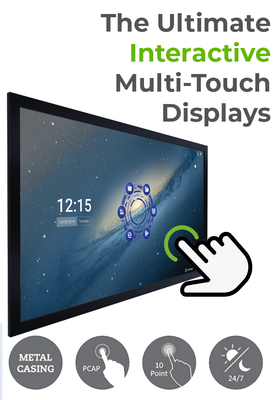
Some meeting rooms need more than video conferencing. Design reviews, planning sessions, lessons and workshops often benefit from an interactive display that allows participants to annotate documents, whiteboard ideas and share content directly from the screen.
An interactive touchscreen can reduce the need for separate whiteboards and presentation accessories, but it should be chosen for a real use case. If the room is primarily used for quick video calls, a standard commercial display and a simple conferencing bar may offer better value. If teams regularly collaborate around plans, drawings or live documents, touch functionality can make the room more productive.
Screen Moove can help businesses specify the appropriate commercial display, mounting, conferencing hardware and installation approach for each room type. The objective is not to add technology for its own sake. It is to create spaces where meetings begin on time, remote participants can contribute properly and the equipment remains dependable long after installation.
A well-planned room earns its value in small moments: the first call that starts without a support ticket, the client who hears every person around the table, and the team that leaves with decisions made rather than time lost.


