


Blog post
Commercial Touchscreen Display Review for Buyers
A touchscreen that looks impressive on a showroom floor can become a costly operational problem once it is handling customer queries, classroom lessons or all-day wayfinding. This commercial touchscreen display review focuses on what UK buyers should assess before committing to a screen, kiosk or interactive display - not just the headline size and price.
For most organisations, the right choice comes down to the environment, expected daily usage, the software behind the screen and who will maintain it. A restaurant ordering point, a school teaching display and a corporate meeting-room screen may all use touch, but their requirements are very different.
What separates commercial touchscreens from consumer screens?
Commercial touchscreens are designed for business environments where reliability, mounting flexibility and long operating hours matter. Unlike a domestic television with an aftermarket touch overlay, a purpose-built commercial display is engineered as a complete unit. It typically offers a stronger chassis, professional connections, wider orientation support and a warranty intended for commercial use.
Operating hours are a major distinction. A display running from opening to closing time, or continuously in a public-facing location, needs a panel rated for that duty cycle. Buying a lower-cost screen can appear sensible at procurement stage, but failures, image retention and replacement disruption soon outweigh the initial saving.
Commercial models also give installers and IT teams more control. Features such as scheduled power on and off, remote management, portrait installation, USB media playback and RS232 or LAN control can reduce manual work across one site or an entire estate. For multi-site retail, hospitality and public-sector deployments, these details are often more valuable than a marginal difference in resolution.
Commercial touchscreen display review: the specifications that matter
A good specification sheet tells part of the story. The practical question is whether each specification suits the intended job.
Screen size, viewing distance and location
Screen size should follow the experience you are trying to create. A 32-inch or 43-inch touchscreen can work well for self-service kiosks, visitor registration and product browsing where users stand close to the display. A 55-inch or 65-inch screen is more suitable for collaborative presentations, interactive retail tables and meeting spaces. In classrooms and training rooms, 75-inch to 86-inch interactive displays are often the better fit, provided the room layout allows every participant a clear view.
Do not select a larger display purely because it has more visual impact. A screen that dominates a narrow reception area can make interfaces harder to use and create installation challenges. Equally, an undersized meeting-room screen makes shared content unreadable from the back of the room.
Brightness is not optional in bright spaces
Brightness is measured in nits, and it has a direct effect on usability. Standard indoor displays can suit controlled offices, classrooms and internal corridors. Shop windows, atriums, transport-facing entrances and areas with strong daylight require substantially higher brightness to keep content legible.
Touch adds another consideration: glass surfaces can reflect overhead lighting and windows. An anti-glare finish helps, but it does not replace correct display positioning. Before ordering, assess sunlight at different times of day, not only when the site is surveyed. A bright screen in the wrong position can still be difficult to read.
Touch technology changes the user experience
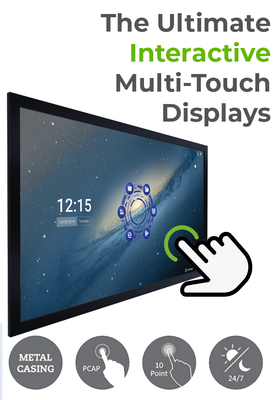
Projected capacitive touch, commonly called PCAP, is familiar from modern tablets and mobile phones. It supports responsive multi-touch interaction and offers a premium, flush-glass finish. It is a strong choice for retail product finders, visitor kiosks and corporate collaboration where users interact directly with the screen.
Infrared touch uses a bezel-mounted sensor frame and can detect touch from fingers, styluses and, in many cases, gloved hands. It is frequently used on larger interactive displays because it is practical and durable. The trade-off is that the bezel can be more visible, and the feel is less like a tablet.
For public installations, consider more than touch points. Ask how the unit performs with repeated use, whether the glass is tempered, how easily it can be cleaned and whether the interface is usable for people of different heights. A technically capable display will still fail commercially if customers cannot complete a task quickly.
Resolution, orientation and content design
4K resolution is now a sensible baseline for many mid-size and large interactive displays, particularly where users read detailed diagrams, menus, property plans or presentation content. However, high resolution does not correct poor interface design. Small buttons, lengthy forms and weak colour contrast create friction regardless of panel quality.
Portrait touchscreens are effective for directory applications, check-in points and digital posters with interactive layers. Landscape displays are generally better for meeting-room collaboration, menu navigation and wide-format product catalogues. Specify the orientation at the start, as not every commercial touchscreen is designed to operate in both positions for extended periods.
The software decision is as important as the display
A touchscreen without a clear content and software plan often ends up showing a static webpage or an outdated PDF. That is an expensive use of an interactive asset.
For digital signage applications, confirm whether the screen has an integrated Android player, whether an external media player is required, and how content will be updated. A centrally managed CMS is particularly useful for businesses operating several locations, allowing teams to schedule promotions, amend information and monitor screen status without visiting each site.
Interactive applications may need a Windows PC, Android application, web-based platform or bespoke software. These options have different support implications. A simple welcome kiosk may operate reliably with an embedded application, while a meeting-room display may need a connected PC, video conferencing hardware and wireless presentation capability.
Security deserves attention where displays are connected to corporate networks or collect visitor details. Work with IT teams early to establish network access, user permissions, device updates and data handling. This avoids a common late-stage issue: the screen arrives, but cannot be connected to the organisation's approved network.
Installation and accessibility can make or break the project
A commercial touchscreen needs suitable mounting, power and connectivity, not simply a wall bracket. In public areas, cable management and secure fixing are essential. Freestanding kiosks need a stable base and consideration of floor loading, while wall-mounted displays must be installed at an accessible height.
Accessibility should influence the hardware and the interface. Position controls within reach, provide adequate clearance for wheelchair users, avoid relying only on colour to communicate status, and ensure text remains readable. Where a touchscreen is intended for self-service ordering or registration, an alternative assisted route should also be available.
Maintenance access is often overlooked. Screens may need cleaning, software updates, cable checks or a replacement player. An installation that looks tidy but requires removing a large wall panel for basic servicing creates unnecessary downtime. For complex deployments, professional installation and ongoing technical support provide a clearer route to keeping the system operational.
Which commercial touchscreen suits each use case?
A retail product finder benefits from a responsive PCAP display, clear product data and a screen bright enough for its location. The focus is speed: customers should locate stock, compare options or request assistance in a few taps.
Restaurants and takeaways need an ordering interface that remains readable under bright lighting, withstands frequent cleaning and connects reliably to the ordering workflow. A kiosk can reduce queue pressure, but only when menu logic, payment hardware and staff processes are properly planned.
Education buyers should prioritise multi-user annotation, front-mounted ports, easy source switching and software compatibility. An interactive flat panel is not just a larger monitor. Teachers need tools that work immediately at the start of a lesson, without repeated logins or complicated calibration.
For reception and visitor management, a compact or mid-size portrait touchscreen can provide a professional arrival experience. The priority is reliable check-in, clear instructions and a discreet, secure way to handle personal information.
Meeting rooms require a different balance. Screen sharing, video conferencing compatibility, camera and microphone placement, and room size all carry more weight than kiosk-style touch performance. A large interactive display may be right for workshop rooms, while a non-touch commercial screen with conferencing equipment can be more efficient in a boardroom used mainly for presentations.
Buying on price alone is the expensive option
When comparing quotations, look beyond the panel price. Include mounting, media players or PCs, software licences, network setup, installation, warranty cover and support. A lower-priced unit may need accessories that are not included, while an apparently higher-priced solution may already be configured for the intended application.
Also check supply continuity. If a business plans to roll out screens across multiple sites over several months, selecting an available, current commercial model reduces the risk of inconsistent hardware and last-minute substitutions. Screen Moove can support buyers with display selection, installation, signage software and the practical hardware required for a complete deployment.
The best touchscreen is not necessarily the one with the longest feature list. It is the screen that stays clear in its environment, works with the right software, suits the people using it and can be supported long after installation. Start with the task the display must perform every day, then specify the technology around that requirement.


