



Blog post
How to Upgrade Meeting Room Displays Properly
A meeting room display that takes five minutes to connect, cannot be read from the back of the room or regularly drops its signal is not a minor IT irritation. It costs time at the start of every meeting and leaves visitors with the wrong impression. Knowing how to upgrade meeting room displays means looking beyond screen size and choosing a reliable, commercial solution that works with the way your teams meet.
For most organisations, the right upgrade improves more than picture quality. It simplifies video calls, supports hybrid working, reduces cable clutter and gives facilities and IT teams a setup they can maintain without constant intervention.
Start with the meeting room, not the screen
Before comparing display specifications, assess what happens in the room. A four-person huddle space has different requirements from a 16-seat boardroom, while a training room may need touch capability and multiple content sources. Measure the viewing distance, identify where participants sit and note whether there is significant daylight or overhead lighting.
Also review the existing workflow. Is the display used mainly for laptop presentations, Microsoft Teams or Zoom calls, digital whiteboarding, room booking information, or a mixture of all four? An upgrade should remove points of friction rather than add another remote control, adaptor or login process.
It is useful to document the current pain points. Common examples include poor visibility, unreliable wireless sharing, inadequate audio, awkward camera angles, ageing consumer TVs and cables that are regularly unplugged or damaged. These details shape the specification far more effectively than selecting the largest screen within budget.
Choose a commercial display built for business use
A consumer television can appear to offer good value initially, but it is rarely designed for the demands of a shared workplace. Meeting rooms often operate for long periods each day, especially in offices with room booking systems or signage displayed between meetings. Commercial displays are designed for extended operation, professional mounting, consistent performance and support in business environments.
When considering how to upgrade meeting room displays, prioritise commercial-grade features such as an appropriate operating rating, warranty cover for business use, landscape or portrait flexibility where required, and the connectivity needed for your conferencing equipment. A non-glare panel can also make a major difference in rooms with windows, while a slim commercial display usually sits more neatly on a wall or mobile trolley.
There is a trade-off. Commercial screens can cost more than retail televisions, but the value is in uptime, compatibility and a longer, more predictable service life. For organisations managing multiple meeting rooms, standardising on a commercial display range also makes replacement, configuration and support considerably easier.
Select the right screen size and resolution
A display that is too small is one of the most common meeting room mistakes. Delegates may be able to follow a video call, but struggle to read spreadsheets, drawings, detailed dashboards and presentation notes. As a practical guide, 55-inch displays often suit small huddle rooms, 65-inch to 75-inch models suit medium meeting rooms, and 86-inch or larger displays are typically better for larger boardrooms and training spaces.
These are starting points rather than fixed rules. Room depth, seating layout and content type all matter. If teams regularly review financial data, architectural plans or complex documents, choose a larger screen than video conferencing alone would suggest.
4K resolution is now the sensible baseline for most professional meeting spaces. It provides clearer text, preserves detail when several windows are shared and gives more flexibility for close viewing. Do not assume resolution solves every visibility issue, however. A correctly sized 4K display with suitable brightness will be more effective than a smaller high-resolution screen placed in a bright room.
Consider brightness and glare carefully
Standard office meeting rooms generally work well with commercial displays offering moderate brightness, provided lighting is controlled. Rooms with large windows, rooflights or strong downlighting may need a brighter panel and careful positioning to prevent reflections. If the screen is being used near a reception area or externally facing glass, a high-brightness commercial display may be required.
Avoid placing a screen directly opposite a window wherever possible. Better screen positioning, blinds and suitable lighting design can be more cost-effective than specifying brightness alone.
Build video conferencing into the display upgrade
The display is only one part of a productive hybrid meeting room. Camera placement, microphones, speakers and the conferencing platform need to work as one system. A large screen paired with a poor camera or weak room audio still produces an unconvincing experience for remote participants.
For smaller rooms, an all-in-one video bar can provide a practical, tidy solution, combining camera, microphones and speakers in a single unit below or above the display. Larger spaces may require separate cameras, ceiling or table microphones, dedicated speakers and more advanced control equipment. The right choice depends on room acoustics, table shape, participant numbers and whether users are expected to move around during presentations.
Decide early whether the room will run as a dedicated Microsoft Teams Rooms or Zoom Rooms system, or whether it will support bring-your-own-device meetings. Dedicated room systems offer a consistent user experience and can be easier to manage at scale. BYOD setups provide flexibility, but they rely more heavily on users' laptops, cables and familiarity with the room equipment.
Many businesses benefit from a hybrid arrangement: a fixed conferencing system for routine calls, plus simple HDMI or USB-C connectivity for guest presenters. Wireless sharing can be useful too, but it should be tested against the organisation's network, security requirements and typical user devices before it becomes the only presentation method.
Plan connectivity, mounting and cable management
A display upgrade should leave the room easier to use than before. That means planning the full signal path from laptop or room PC to screen, camera, audio and network. Check the number and type of HDMI, USB-C, USB and network connections required, as well as whether control systems, touch overlays or room booking panels need to integrate with the installation.
USB-C is particularly useful for modern laptops because a single cable can carry video, data and charging. However, not every USB-C port supports the same functions. Confirm compatibility with the selected display, docking hardware and the laptops used across the business rather than relying on the connector shape alone.
Professional mounting matters as much as the display itself. A fixed wall mount creates a clean finish in most boardrooms, while a tilting mount can help improve sightlines. Mobile trolleys are valuable for flexible training rooms and multi-purpose spaces, although they need secure cable routing and suitable storage. In all cases, consider access for servicing, ventilation around the display and the location of power and data points.
Visible trailing leads undermine an otherwise professional meeting space and create a maintenance problem. Concealed cabling, connection plates and clearly labelled inputs reduce accidental disconnections and make the system more intuitive for visiting staff and clients.
Decide whether touch adds genuine value
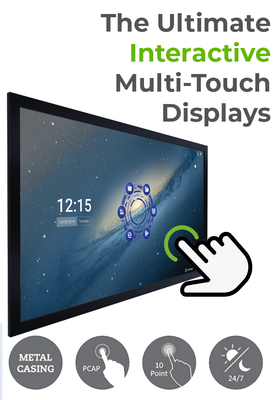
Interactive displays are an excellent fit for workshops, teaching, design reviews and collaborative planning sessions. Teams can annotate presentations, sketch ideas, mark up documents and share digital whiteboards without gathering around a laptop. In education and training settings, touch functionality can materially change how the room is used.
For a conventional boardroom used primarily for video calls and slide presentations, touch may add cost without enough return. A large non-touch commercial display, reliable conferencing hardware and simple content sharing may be the stronger investment. The decision should be based on meeting behaviour, not on a feature checklist.
If touch is required, assess the software ecosystem as well as the panel. Consider how users will save annotations, access cloud files, share content securely and reset the display between sessions. Staff adoption is often the deciding factor between an interactive display that earns its place and one that becomes an expensive screen for PowerPoint.
Standardise the experience across rooms
In a multi-room office, consistency is a major operational advantage. Users should not need to learn a different connection process in every room. Standardise display sizes by room type, preferred conferencing platform, cable locations, control interfaces and basic instructions.
This also helps IT and facilities teams. Spare equipment can be held centrally, common faults are easier to diagnose, and new rooms can be deployed more quickly. For multi-site organisations, standardisation supports a cleaner procurement process and more reliable remote support.
Screen Moove can support businesses with commercial display selection, conferencing hardware, professional installation and the practical technical advice required to specify a complete room solution. For more complex projects, involving an AV specialist before equipment is ordered can prevent expensive changes once walls, furniture and cabling are in place.
Make the upgrade easy to adopt
The best meeting room technology feels almost invisible to the people using it. Provide a short, clear guide in the room, name inputs consistently and test typical meeting scenarios before handover: a Teams call, a Zoom call, a guest laptop, a wireless presentation and a shared spreadsheet.
Arrange a handover for the staff responsible for first-line support, including how to restart equipment, change inputs and report faults. A small amount of planning here protects the investment long after installation day. When every participant can see, hear and share without delay, the upgraded room starts paying back in the first meeting of the day.


