


 Touch earns its place when it helps somebody complete a useful task—not simply because it is available.
There are two expensive display mistakes: paying for touch functionality that nobody uses, and choosing passive signage for a task that still requires staff assistance.
The interactive touchscreen vs standard display decision cannot be made from screen size, resolution or appearance alone. It depends on the job the display must perform and whether the viewer needs to take an action.
This guide compares the two options across user journeys, installation, content, support and total cost. It also explains how to assess interactive-display ROI without assuming that touch automatically creates better engagement.
Quick Answer: When Is a Touchscreen Worth It?

Choose touch when a user needs to search, select, order, register, navigate, annotate, configure or collaborate. Choose a standard commercial display when information is broadcast to viewers and no on-screen response is required.
The user has a clear task to complete, the interface removes friction and the result can be measured.
The audience only needs to view promotions, announcements, menus, dashboards, videos or directions.
Interactivity is not automatically engagement. A touchscreen without a clear task or obvious next action can become an expensive passive screen. If your use case is genuinely interactive, explore ScreenMoove’s commercial interactive touchscreen options.
Interactive Touchscreen vs Standard Display: What Actually Changes?

A commercial touchscreen combines a professional display with touch detection and an interactive application. Depending on the system, content may run through integrated Android, a Windows OPS computer or an external PC. A standard commercial display presents scheduled or live content without accepting direct user input.
| Consideration | Interactive Touchscreen | Standard Display |
|---|---|---|
| Main purpose | Two-way task completion | One-way communication |
| User input | Finger, stylus or multi-touch | No direct input |
| Content | Application, browser, form or whiteboard | Scheduled media, dashboards or live feeds |
| Computing | Android, Windows/OPS or external PC | Media player, CMS or external source |
| Installation | Reachable, stable and accessible | Positioned for visibility and sightlines |
| Maintenance | More cleaning and software support | Lower-contact maintenance |
| Measurement | Selections, completions, leads and dwell | Plays, reach and estimated impressions |
| Typical cost | Higher hardware, software and integration cost | Lower hardware and content complexity |
Both options should be commercial-grade where the display must support long operating hours, portrait orientation, public installation, remote management or a professional warranty. A domestic television is not automatically a suitable substitute.
Five Questions That Reveal Whether Touch Adds Value
1. What action should the user complete?
Define the action with a verb: find, order, register, compare, configure, annotate or book. “Increase engagement” is too vague to justify touch.
2. Would touch remove friction?
Consider whether self-service could reduce queue time, repeated questions, printed materials, staff dependency or unnecessary steps in the customer journey.
3. Can people comfortably reach and understand it?
Check mounting height, wheelchair access, circulation space, glare, privacy, language options, button size and the clarity of the first on-screen instruction.
4. Is there an application and content owner?
Someone must own the application, user experience, content accuracy and updates. Without that resource, an interactive display can quickly become passive signage.
5. Can the result be measured?
Useful measures include completion rate, lead capture, order value, staff time saved, repeat use, abandonment and error rate.
If your team cannot define both the user action and the success metric, begin with a standard display or validate the interactive concept through a limited pilot.
When an Interactive Touchscreen Pays Off
Self-Service and Queue Reduction

Touch can create value when customers repeatedly perform a structured task such as ordering, checking in, buying tickets, confirming an appointment or searching a catalogue. Measure completion time, queue length, assistance requests and order value. The process must be intuitive enough to complete without simply moving the queue from a counter to a screen.
Wayfinding and Information Discovery

A fixed arrow does not need touch. A searchable directory covering multiple floors, departments, accessible routes or live event schedules may benefit from it. Useful measures include successful searches, reduced reception questions and the time needed to find a destination.
Guided Selling and Lead Capture

Retailers, showrooms and property businesses can use touch for product comparison, configuration, availability searches and enquiry capture. Exhibition teams can use touchscreens for exhibitions and public engagement to let visitors explore content at their own pace. Any lead-capture journey must include appropriate consent and privacy controls.
Teaching, Workshops and Meetings


Annotation, digital whiteboarding, multi-user exercises and shared problem-solving give touch a defined purpose. Schools can explore dedicated interactive displays for schools and universities, while larger collaborative environments may require a display designed for meeting-room or training use.
When a Standard Commercial Display Is the Smarter Choice

Scheduled promotions, digital menus, announcements, internal communications, queue numbers, dashboards and high-level directions are primarily broadcast tasks. If the audience only needs to look, adding touch creates cost without improving the message.
A non-touch display is also usually preferable when the screen is mounted above reach, viewed from a distance, installed behind glass or intended for many simultaneous viewers. The content workflow is simpler, physical-reach concerns are reduced and the display generally requires less cleaning and software support.

Browse ScreenMoove’s standard commercial displays when the priority is reliable one-way communication. For scheduled campaigns and centrally managed media, consider purpose-built non-touch digital signage screens.
The Hybrid Display Journey

Touch and non-touch displays do not have to compete for the same role. A large standard display can attract attention, present a promotion or orient visitors from a distance. A reachable touchscreen can then handle detailed search, configuration or self-service. This hybrid approach gives each screen a specific job and avoids expecting one installation to serve every stage of the journey.
How to Calculate Touchscreen ROI and Total Cost

Do not compare the screen prices alone. A meaningful business case should compare the full lifecycle cost with the value created by the interactive function.
Annual value = staff time saved + incremental gross profit + avoided print/admin cost + value of qualified leads
Payback period = total installed project cost ÷ monthly value created
Total installed cost may include the screen, mount or enclosure, player or PC, interactive software, application design, systems integration, installation, connectivity, training, cleaning, support and future content updates.
A visitor-information kiosk saves 45 minutes of reception time each working day. At an illustrative employment cost of £18 per hour across 250 working days, that represents approximately £3,375 of annual staff capacity.
If the same kiosk also generates 10 qualified enquiries per month and each enquiry has an estimated contribution value of £15, that adds an illustrative £1,800 per year. The combined estimated annual value would be £5,175 before maintenance and support costs are deducted.
These figures are illustrative rather than promised results. Actual value depends on usage, content quality, integration, staffing and the operating environment.
For an unfamiliar public-facing application, run a four-to-eight-week pilot. Record the baseline first, then measure use rate, task completion, abandonment, assistance requests, errors and downtime. Touch pays only when the interactive function is used often enough to create more value than its additional lifecycle cost.
How to Choose and Specify the Right Solution
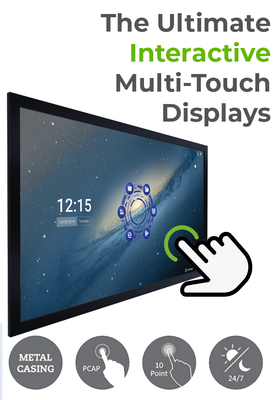
Start with the environment and application, then choose the format, size and touch technology. PCAP touch offers responsive, tablet-like interaction for many public-facing installations. Infrared multi-touch is frequently used on larger collaborative displays.

Confirm application compatibility, browser requirements, Android or Windows support, the required number of touch points and whether the screen needs remote management. An open-frame touchscreen for custom integration can be built into a kiosk, counter, cabinet or specialist enclosure.
Wall-Mounted Touchscreen
Suitable for compact wayfinding, product browsing, visitor information and self-service applications.
Freestanding Touch Kiosk
Useful in public spaces, retail, exhibitions and reception areas where a dedicated interactive station is required.
Collaborative Display
Designed for classrooms, workshops, training rooms and meetings that need annotation or digital whiteboarding.
Also assess accessible reach, viewing and touching distance, brightness, glare, orientation, operating hours, cable routing, ventilation, VESA compatibility and warranty. Public systems may need kiosk mode, network security, secure data handling, privacy protection and an agreed process for cleaning and software support.
Tell ScreenMoove what users need to do, where the screen will be installed and how success will be measured. The team can recommend a suitable display, mounting approach, software route and support package.
Interactive Touchscreen FAQs
Buy Interactivity for a Defined User Action
The strongest interactive touchscreen vs standard display decision begins with one question: what must the user do? If the answer is simply “view the information”, a standard commercial display is likely to offer better value. If the user needs to search, order, navigate, create or collaborate—and the result can be measured—touch may justify its additional cost. Explore ScreenMoove’s interactive display solutions or request project advice.


