


Blog post
Touchscreen Kiosks for Better Customer Service
A queue at reception, a busy takeaway counter or a visitor arriving after office hours all create the same problem: people need information or action without waiting for a member of staff. Touchscreen kiosks give organisations a practical way to deliver it, from self-service ordering and visitor registration to wayfinding, ticketing and product browsing.
The right kiosk does more than put a screen in front of a customer. It must work reliably for long operating hours, suit the physical environment, run the required application and be straightforward for staff to manage. That is why commercial specification matters as much as screen size or appearance.
Where touchscreen kiosks deliver business value
A well-planned kiosk removes friction at high-volume points in the customer journey. In hospitality, guests can check in, find amenities or register for an event without placing extra pressure on the front desk. In restaurants and takeaways, self-order kiosks can reduce queues, present upsells consistently and allow staff to focus on food preparation and service.
Retailers use kiosks to extend the shop floor. Customers can check stock, browse variations not displayed in-store, join loyalty schemes or locate departments. For public sector buildings, healthcare sites and education campuses, interactive wayfinding can direct visitors to the right room, department or service while reducing repetitive enquiries.
Corporate offices have a different requirement. A reception kiosk may manage visitor sign-in, print badges, notify hosts and display site information. The interface needs to reflect company policy and provide a clear audit trail, while the hardware must look appropriate in a professional setting.
The return depends on the application. A kiosk is not automatically the right answer where every interaction needs judgement or discretion. It is strongest when the task is repeatable, the journey is easy to explain on screen and the organisation has enough footfall for waiting time to become a genuine cost to service quality or sales.
Choosing commercial touchscreen kiosks
Consumer tablets and domestic displays can appear cheaper at the outset, but they are rarely designed for unattended, fixed-location use. Commercial touchscreen kiosks are built around longer operating schedules, durable enclosures, secure mounting options and the connectivity needed to run business applications.
Start with the environment. A compact 22-inch or 24-inch unit can be effective for check-in, feedback or queue management where space is limited. Larger 32-inch, 43-inch or 55-inch kiosks provide better visibility for product catalogues, maps and self-order journeys. Bigger is not always better: an oversized display can make a simple process feel slower, while a small screen may be difficult to use for maps or detailed content.
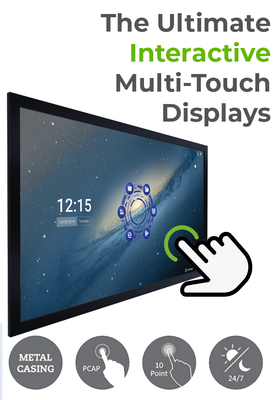
Touch technology also affects the experience. Projected capacitive touch offers the familiar, responsive feel associated with modern smartphones and is well suited to most indoor customer-facing applications. Infrared touch can be useful on larger interactive displays and may support use with gloves or styluses, depending on the configuration. For public installations, specify toughened glass and an enclosure designed to withstand regular use.
A commercial kiosk specification should account for:
- operating hours and thermal performance, particularly in sites open late or seven days a week;
- screen brightness, including whether the unit will sit near strong windows or under bright lighting;
- portrait or landscape orientation, based on the application layout and available floor space;
- connectivity such as Wi-Fi, Ethernet, USB and HDMI, plus access for servicing;
- an integrated or external media player, PC or Android system to run the chosen software;
- secure floor, wall or counter mounting and sensible cable management.
Freestanding, wall-mounted or counter-top?
Freestanding kiosks create a clear self-service destination and are ideal for entrance areas, retail floors, hotel lobbies and food ordering zones. They can accommodate larger displays and internal hardware, but they require adequate floor space and a safe, stable installation.
Wall-mounted units save space and work well for visitor check-in, interactive directories and ticket collection. Counter-top kiosks are useful when staff remain nearby but customers need to complete a short action independently, such as signing in or providing feedback.
The right format should support the flow of people through the space. A kiosk positioned directly in a narrow entrance may create a new bottleneck. A unit placed too far from the point of decision may be ignored. Site planning should consider power, data, accessibility, sightlines, cleaning access and the route users take before and after interaction.
The software is the service experience
Hardware provides the interface, but the application determines whether customers can actually complete their task. A polished kiosk enclosure cannot compensate for an unclear menu, a slow website or a sign-in process with too many fields.
For digital signage-led applications, kiosk software can combine idle-screen promotions with interactive content. When no one is using the screen, it can display campaigns, menus, directions or corporate messaging. When touched, it moves into a controlled user journey. This approach makes better use of the display while preserving a focused interaction when needed.
For ordering, booking or payments, integration must be assessed early. Check compatibility with EPOS, payment terminals, booking platforms, stock systems and customer databases. A browser-based application may be sufficient for some deployments, while others require a dedicated Windows or Android player, a managed application and remote device control.
Content should be designed for standing users, not copied from a desktop website. Use large touch targets, concise instructions, high-contrast text and a clear route back to the start. Avoid asking customers to enter information that staff could capture elsewhere unless it is necessary. Test the journey with real users before rolling it out across multiple sites.
Installation, security and ongoing support
An unattended kiosk becomes part of the working environment, so installation is not merely a final step. Professional installation helps ensure the unit is correctly fixed, level, connected and configured. It also reduces the risk of visible cables, unstable mounts or inaccessible power points undermining an otherwise professional deployment.
Security needs to be proportionate to the location. In a supervised corporate reception, cable management and a secure base may be enough. In a public venue, tamper-resistant fixings, lockable access panels, toughened glass and restricted ports may be more appropriate. Where personal data is entered, the kiosk should also be positioned to protect user privacy and configured in line with the organisation's information security requirements.
Remote management is particularly valuable for multi-site estates. Teams should be able to update content, monitor player status and identify faults without travelling to every location. This is where a managed signage platform, dependable hardware and responsive technical support reduce the operational burden over time.
Screen Moove can support projects from selecting commercial display hardware and kiosk format through to installation, digital signage software and ongoing technical assistance. For buyers managing a wider AV estate, this joined-up approach helps avoid compatibility gaps between display, player, mounting and application requirements.
Plan the kiosk around the customer task
The most effective kiosk is rarely the one with the longest feature list. It is the unit that makes one valuable task quicker and clearer for the person standing in front of it. Define that task first, then specify the display size, touch technology, software, mounting and support model around it.
Before placing an order, walk the proposed location at the busiest time of day. Watch where people stop, what they need to know and where queues form. That small piece of practical observation will usually tell you more about the right touchscreen kiosk solution than a specification sheet alone.


