

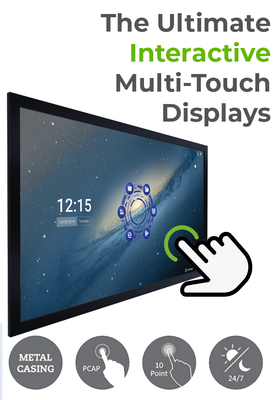


 The right classroom touchscreen should remain readable from the back of the room, support your school’s preferred apps and withstand daily use across lessons, training and collaborative activities.
What This School Interactive Display Guide Covers
This guide is designed for school IT leads, senior leadership teams, business managers, estates teams and multi-academy trust procurement teams comparing named classroom touchscreen models.
- Why choosing the right classroom display matters
- The 9 best interactive displays for schools
- What to look for in a school interactive display
- Quick product comparison
- Interactive whiteboard vs interactive display
- How much school interactive displays cost
- Mounting and multi-room deployment
- Installation and rollout support
- Frequently asked questions
Choosing a Classroom Touchscreen Is No Longer a Simple Size Decision
The market for school interactive displays has expanded quickly. Buyers now need to compare screen sizes, Android versions, Google EDLA certification, app compatibility, built-in collaboration tools, audio, cameras, touch performance, warranty support and long-term device management.
A screen that looks suitable on a product page may feel too small from the back row, lack the software controls required by the IT team or become difficult to manage across a large estate. Equally, an expensive 86-inch model may be unnecessary in a compact primary classroom where a well-positioned 65-inch display would perform perfectly.
This shortlist covers nine interactive displays across several sizes and budget tiers. It includes dependable everyday classroom boards, Google EDLA-certified displays for managed school environments, all-in-one models for hybrid teaching and premium large-format options for secondary classrooms, sixth form centres and school halls.
The 9 Best Interactive Displays for Schools in 2026
The products below are ordered broadly from smaller everyday classroom options to large-format displays for deeper secondary classrooms, collaborative learning spaces and premium installations.
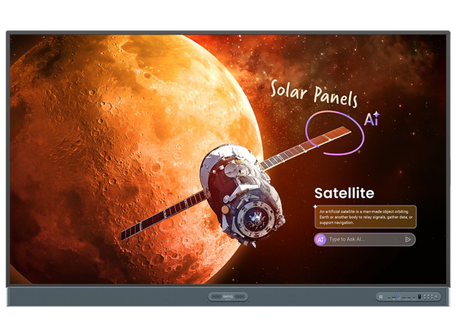

Large 85 and 86-inch displays are most useful where room depth, detailed content or larger groups make a 65 or 75-inch screen difficult to read.
What to Look for in a School Interactive Display
The best smart board for a school is the one that fits the room, the teaching workflow and the school’s IT environment. These are the main criteria to compare before placing an order.
Choose a size that keeps lesson content readable from the furthest normal seating position. Detailed documents and data need more screen area than large presentation slides.
EDLA-certified displays support a managed Google environment with access to approved Google services and stronger controls for schools standardising on Google Workspace for Education.
A newer Android platform can offer improved security, app compatibility and a longer useful deployment life, especially when the screen will remain installed for several years.
Look for accurate multi-touch input, responsive writing and a durable panel suitable for daily lessons, group activities and repeated use by staff and pupils.
Speakers may be enough for normal classroom content, while staff training, hybrid lessons or remote support may justify a built-in camera and microphone array.
Check the warranty terms, service arrangements and whether the supplier can support asset rollouts, mounting, installation and replacement planning across multiple sites.
Schools planning managed Android deployments should read ScreenMoove’s guide to Google EDLA certification. You can also compare interactive displays built for education before narrowing the shortlist to a specific model.

Google EDLA certification can simplify access to managed Google services and is particularly relevant for schools already using Google Workspace for Education.
School Interactive Display Comparison Table
| Model | Size | Platform | Best for |
|---|---|---|---|
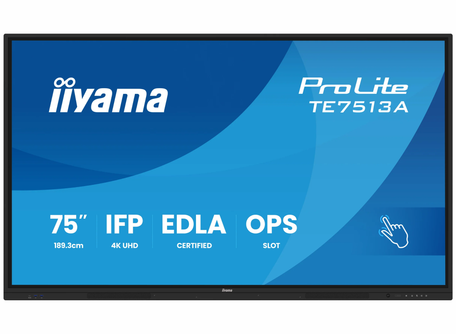
| iiyama ProLite TE7513A-B2AG | 75" | Google EDLA | Managed Google deployments |
| BenQ RP6505 Board Pro | 65" | Android 15, Google EDLA | Everyday classroom use |
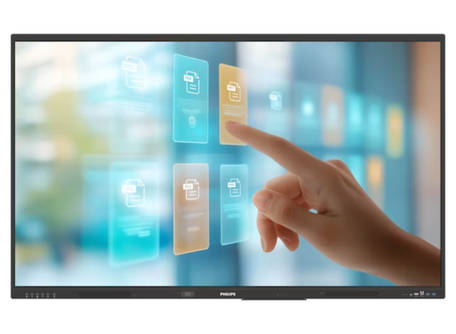
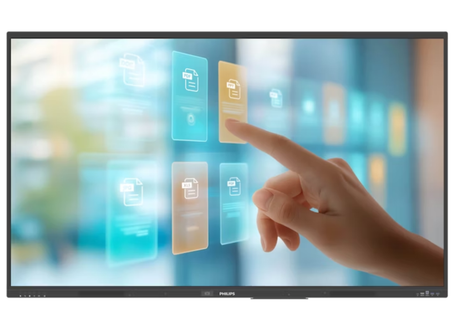
| Philips E-Line 65BDL4252E/00 | 65" | Android 14 | Value-led multi-room upgrades |
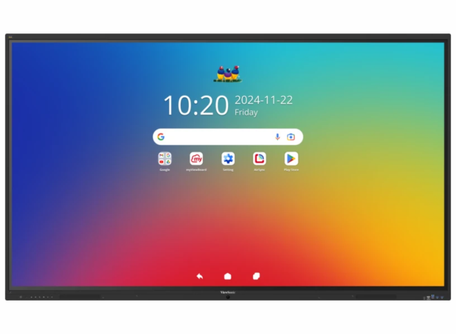
| ViewSonic ViewBoard IFP8641 | 86" | EDLA certified | Collaborative learning |
| Philips E-Line 75BDL4252E/00 | 75" | Android 14 | Mid-size classrooms |
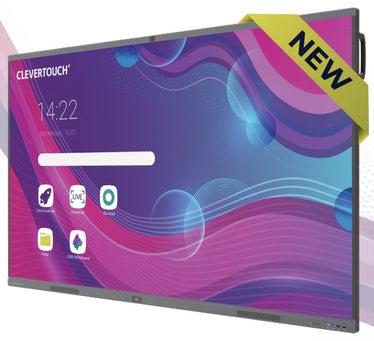
| CleverTouch Pro Series C | 86" | Google EDLA | Secondary classrooms |
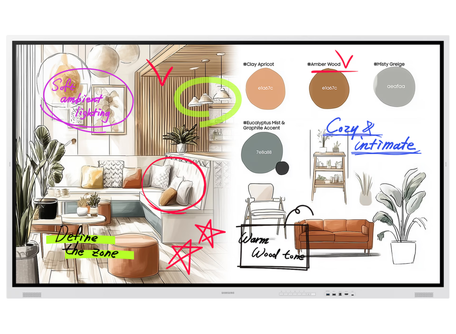
| Samsung WM85FX Flip | 85" | Samsung Flip platform | Premium flagship rooms |
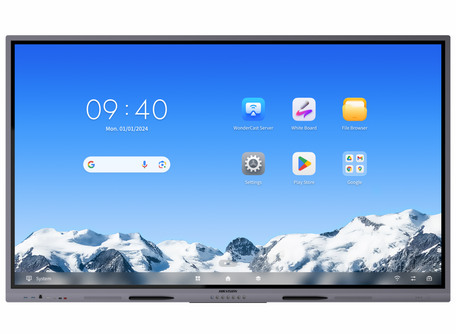
| Hikvision DS-D5C86RB/A2L | 86" | Android 14, EDLA | Budget-conscious large-format rollouts |
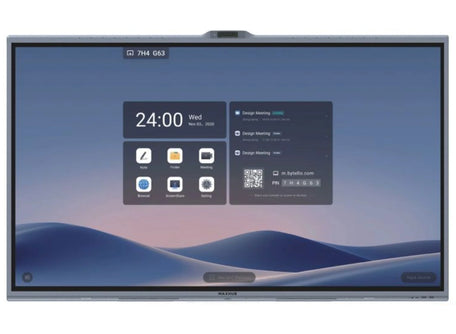
| MAXHUB XBoard V8650 | 86" | All-in-one collaboration platform | Hybrid teaching and staff training |
Interactive Whiteboard vs Interactive Display: What Is the Difference?
Schools often use the terms interactive whiteboard, smart board and interactive display interchangeably. In everyday purchasing language, they now usually describe the same broad category: a large touchscreen used for teaching, annotation, whiteboarding and lesson content.
The practical difference is technological. Older interactive whiteboards often relied on a separate projector and connected computer. Modern classroom interactive displays combine a 4K screen, touch layer, speakers and an embedded Android platform in one device. Many models can run whiteboard tools and apps directly, while an optional OPS PC or connected laptop can add Windows functionality.
For procurement, focus less on the label and more on the specification. Screen size, Android version, Google EDLA status, touch performance, warranty and installation support will affect the classroom experience far more than whether the product is marketed as a smart board or interactive whiteboard.
How Much Do Interactive Displays Cost for Schools?
The price of an interactive whiteboard for a school depends mainly on the screen size, brand, Android platform, Google EDLA certification, built-in conferencing hardware and installation requirements.
A 65-inch display is normally the most economical starting point and can be suitable for many standard classrooms. Moving to 75 inches increases visibility and writing area without the full physical impact of an 86-inch board. Large 85 and 86-inch displays command a higher budget because of the panel size, mounting requirements and delivery complexity.
Exact education pricing can differ from the public list price, especially for multiple units or a multi-site rollout. Schools should budget for the full deployment rather than the screen alone. Brackets, mobile trolleys, OPS computers, installation, cable management, asset tagging and removal of old equipment can all affect the total project cost.
ScreenMoove offers an education discount and account service for eligible schools, colleges and education organisations.
Mounting and Deployment: Fixed, Mobile or Multi-Room Rollout
A fixed wall mount creates the cleanest classroom installation and keeps the display at a consistent teaching height. The wall construction, bracket rating, cable routes and access to power and data should be checked before installation, particularly for 85 and 86-inch displays.
A mobile trolley is useful when a screen needs to move between rooms, serve a flexible learning area or avoid fixing into an unsuitable wall. Compare ScreenMoove’s mobile display trolleys when portability is more valuable than a permanent installation.
Schools that need Windows software alongside the display’s built-in Android platform can add an OPS computer. An OPS module sits inside the compatible display and avoids a separate desktop PC, trailing cables and an additional mounting location. Browse OPS PC modules for compatible Windows options.

Large classroom touchscreens require suitable structural support, safe lifting, controlled cable routes and a mounting height that works for both pupils and staff.
Interactive Display Installation and Rollout Support
A single 65-inch classroom display may be manageable for an experienced estates or IT team when the wall construction, bracket and cable route are straightforward. Larger displays and multi-room programmes create more risk because each room may have different walls, power positions, furniture and access restrictions.
Professional installation is recommended for 75, 85 and 86-inch screens, uncertain wall structures, high-volume deployments and projects that include removal of old boards, new power, containment, mobile stands or OPS modules.
ScreenMoove’s professional installation service can support delivery, mounting, cable management and commissioning. For wider projects, explore ScreenMoove’s complete education AV solutions covering classrooms, halls, meeting spaces and multi-site installations.
- Room survey and wall assessment
- Display and bracket compatibility checks
- Safe delivery and lifting of large-format screens
- Power, data and cable containment planning
- OPS PC and peripheral installation
- Testing, handover and rollout consistency
Interactive Displays for Schools FAQs
Related Education Display Guides and Categories
Which Interactive Display Should Your School Choose?
For a standard classroom, the BenQ RP6505 and Philips E-Line 65-inch models provide the most practical starting point. Schools needing more screen area should compare the Philips and iiyama 75-inch options, particularly where Google EDLA certification is part of the IT strategy.
For larger secondary rooms, the CleverTouch, ViewSonic and Hikvision 86-inch displays provide different balances of education features, collaboration tools and value. The MAXHUB XBoard is the strongest all-in-one option for hybrid teaching, while the Samsung WM85FX Flip is the premium choice for flagship spaces.
The final decision should balance room size, software management, deployment scale, installation and budget rather than focusing on one specification alone.


